Showing posts with label windows server. Show all posts

Thursday, September 7, 2017

Batch script to check if file exist or not


This is a simple windows batch script to check if a file exists or  not


ECHO CHECKING IF FILE EXISTS
set FILEEXISTS=FILE_NAME                          REM ENTER FILENAME HERE
if exist %FILEEXISTS% (DO SOMETHING)
ELSE (DO SOEMTHING ELSE )

Thursday, June 30, 2016

Copy files from linux to windows using PSCP (putty)


This is a  simple batch script that will prompt you for the remote file location and when  provided will copy file from remote location to local destination directory (will prompt for local dir too ).
This script will need putty pscp executable file and you will need to configure the create and save connection to the remote hosts. As below

You can download putty from here


-- Script starts here 
-- copy below to file and save it as batch file Ex:  filename.bat 


@ECHO off

SET /P REMOTE_FILE=ENTER FULL PATH TO REMOTE FILE:
SET /P LOCAL_FOLDER=ENTER PATH TO LOCAL FOLDER:
SET PATH=C:\Program Files (x86)\PuTTY;%PATH%
IF "%REMOTE_FILE%"=="" GOTO Error1
IF "%LOCAL_FOLDER%"=="" GOTO Error2
ECHO EXECUTING :
ECHO pscp username@Linux01:%REMOTE_FILE% %LOCAL_FOLDER%
pscp username@Linux01:%REMOTE_FILE% %LOCAL_FOLDER%
GOTO End
:Error1
ECHO You didn't enter REMOTE_FILE details!!
:Error2
ECHO You didn't enter LOCAL_FOLDER details!!
:End


Sample output :

C:\Windows\System32>pscp_script.bat
ENTER FULL PATH TO REMOTE FILE: /u01/app/oracle/dpump/test1.log
ENTER PATH TO LOCAL FOLDER: C:\test
EXECUTING :
pscp username@Linux01:/u01/app/oracle/dpump/test.log C:\test
test.log                  | 18 kB |  18.5 kB/s | ETA: 00:00:00 | 100%

Wednesday, June 29, 2016

FIREWALL SETTINGS TO ALLOW PORTS ON WINDOWS SERVER


Firewall settings to allow connections via ports for SQL SERVER on WINDOWS SERVER


 Opening up ports will allow the public/private connections to connect to DB via certain ports. This is a security feature that has to be enforced in a real time windows server in a secured environment.

 Goto >> control panel >> system and security


Then goto >> windows firewall and select advanced settings.


You will see inbound & outbound rules. These are the settings that need to be changed in order to allow or block connections.


select inbound rules and edit them. You can specify the ports that you would like to allow for inbound connections. Enter the below ports.


Select Allow the connection


Select types of connections you want to allow


Name the inbound connection rule


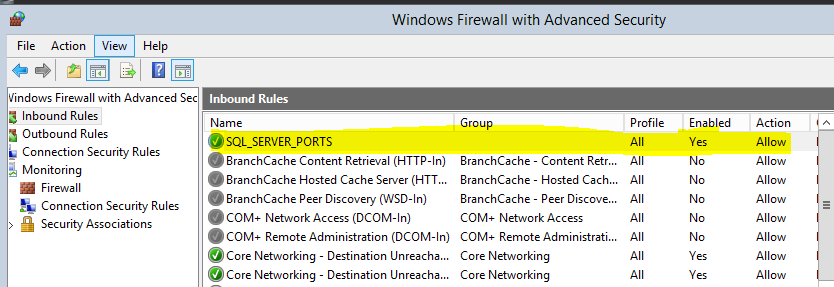
 Click on the inbound rules and verify the new rule has been added to list.


Step-by-Step Process of Installing SQL SERVER 2014 on Windows Server

Installation of SQL SERVER 2014 on Windows Server


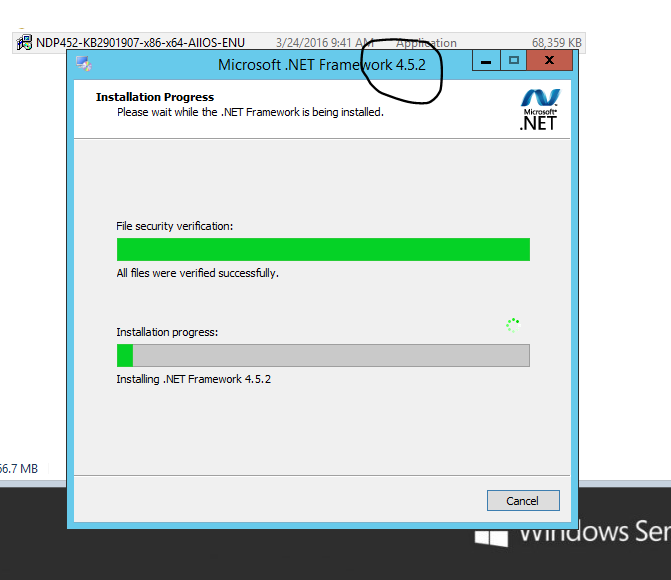
It is a pre-req for SQL SERVER installation to have  have Microsoft .NET Framework 4.5 or higher version installed.


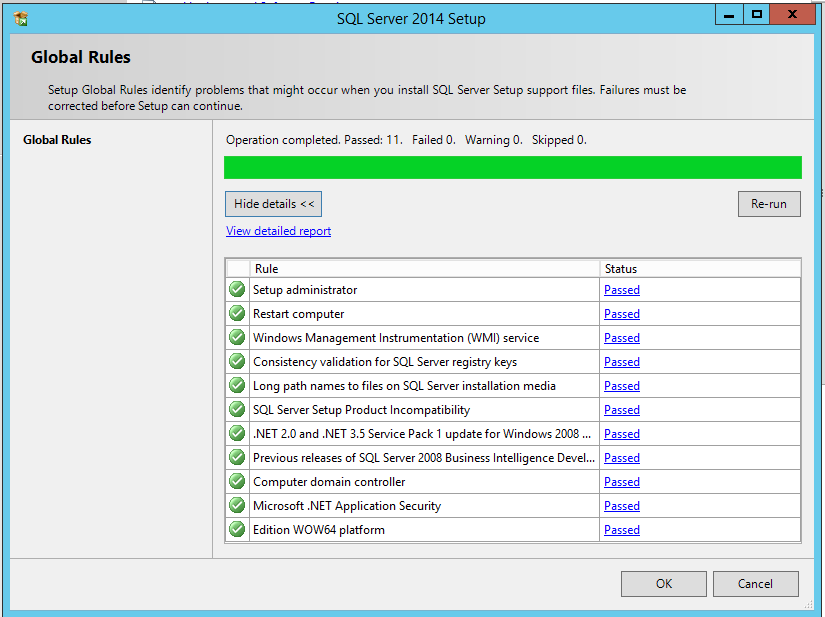
 Invoke sql-server Setup. Make sure you run installer as administrator.


Select the option that you would like to perform. In this case we are installing a new setup.


Then you will prompted for installtion. what type of installation are you trying to perform. Select New SQL SERVER stand alone installation as below screen.


You will be prompted for key. Select Evaluation if you don't have a Key. In my case I have Key so I am entering the key.


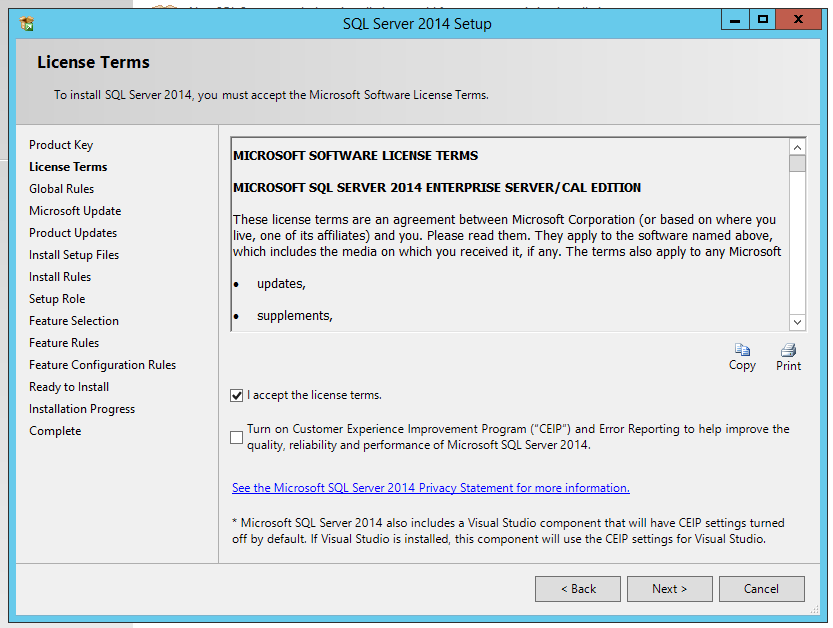
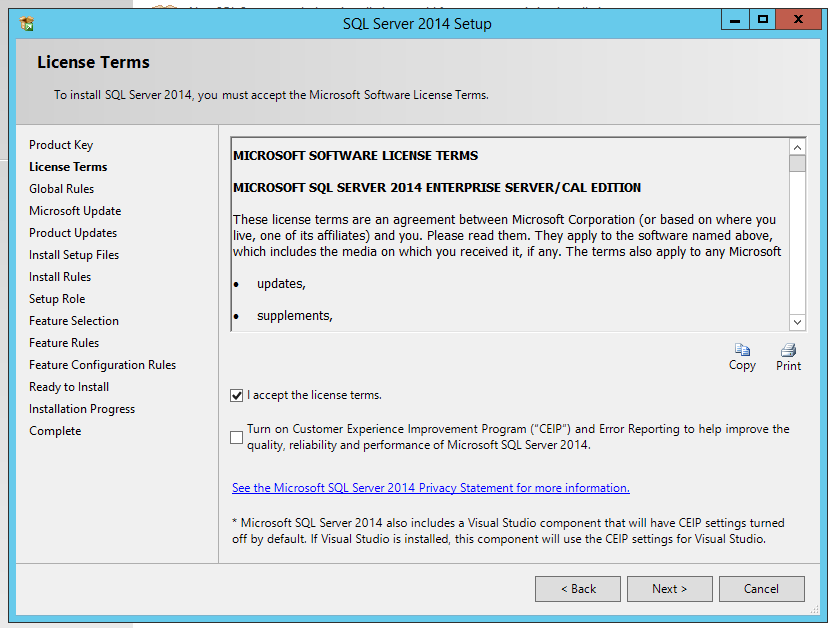
Accept Incensing Terms. If you have a customer support check second box  too..


Check the box if you would like to Microsoft to check for Updates.


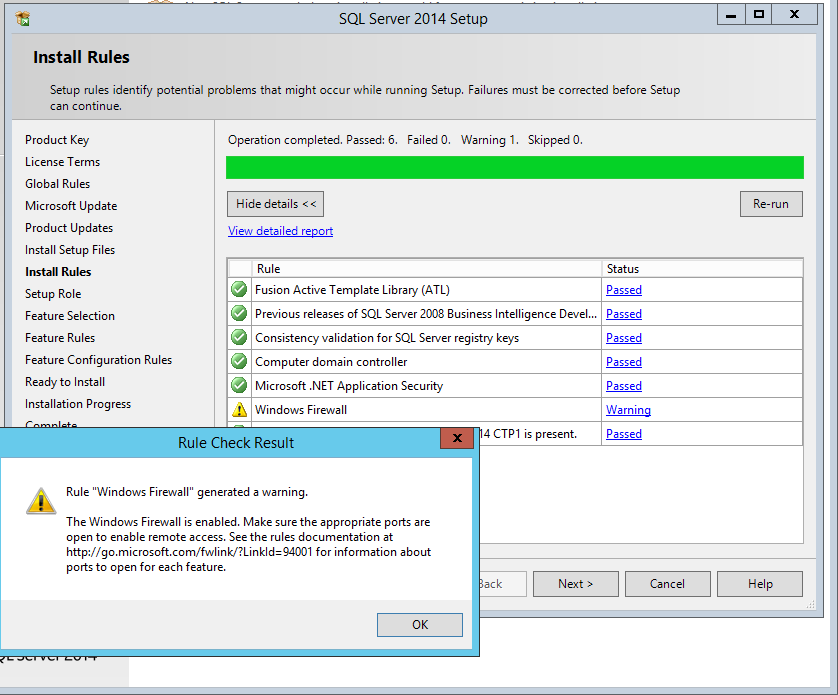
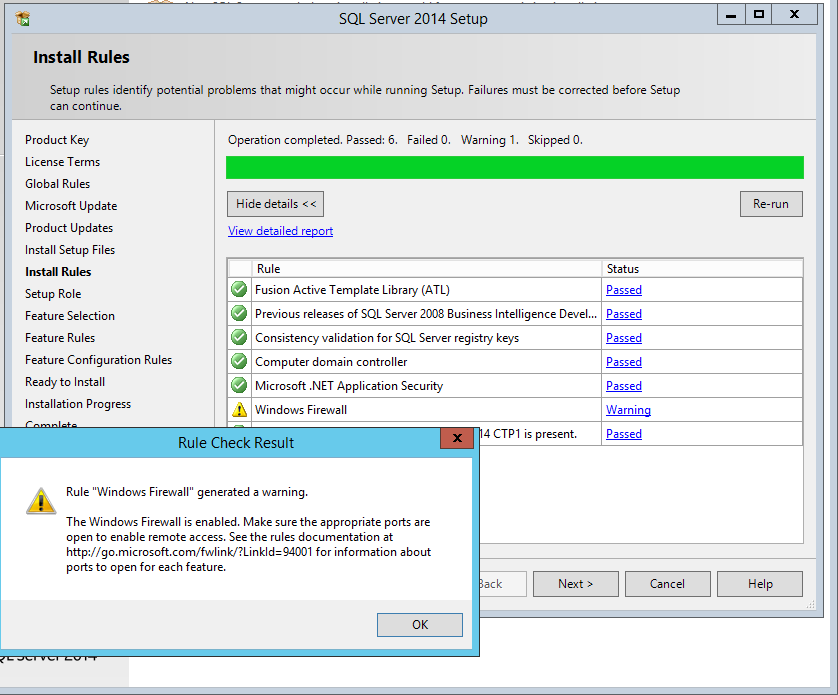
Make sure you do not receive any warning. If you have any warnings, you should clear them before you progress to next step.


Select the options In my case I am going to install defaults.


In this step you can select the locations of where you want to install the software and also what features you want to include or discard.


Name the Instance or leave it as default (I suggest to add your own name)


Setup service accounts and passwords. You also have an option to select if these services can start automatically or manually upon srever reboot.


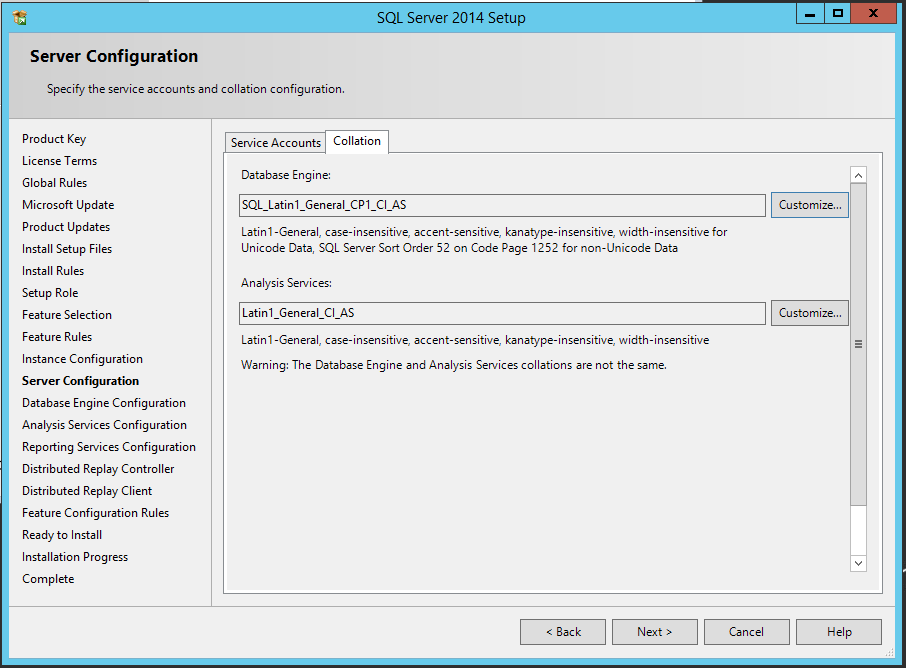
Select Collation  (character set in oracle). leave it default if you are unsure.


Select mode of authentication for you database. use mix mode if you want to connect to DB using password & windows authentication.


select data directories locations 


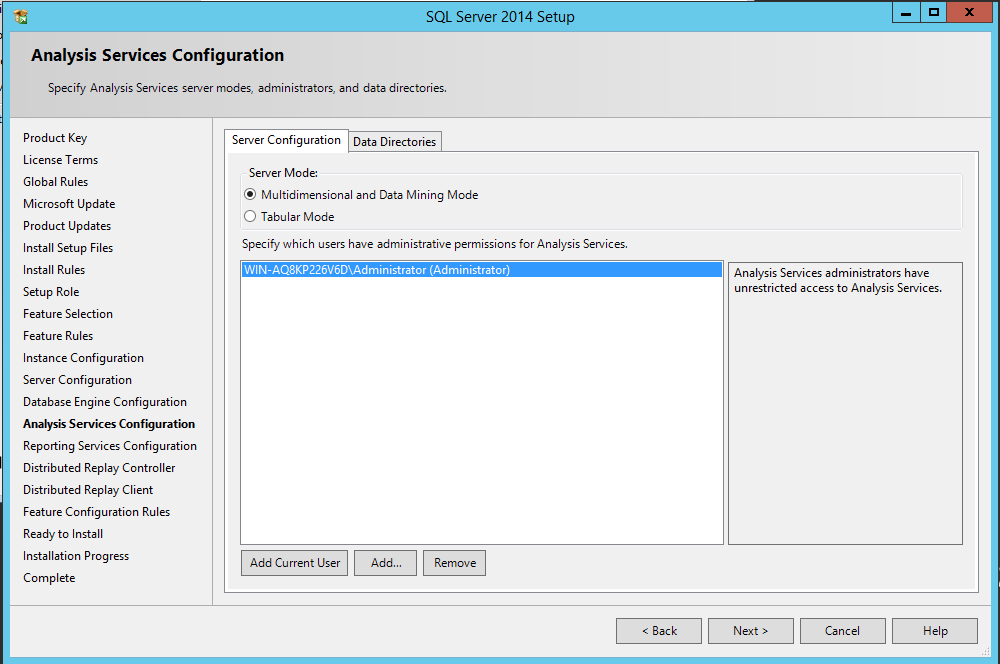
You can add additional user accounts to connect to DB here.


Install and configure


Check summary :


Connecting to oracle database using MS-DOS cmdline


Connecting to oracle database using MS-DOS cmdline 


set ORACLE_HOME=D:\app\oracle\product\11.2.0\db_1
set ORACLE_SID=ORCL

sqlplus -s "USERNAME/PASSWORD" @C:\Shell\Drop_objs.sql


sqlplus -s "USERNAME/PASSWORD" @C:\Shell\Drop_objs1.sql

-- We can add multiple sql scripts here

Sunday, April 17, 2016

copying files from host OS to guest OS on Virtual Machine

 Configuring file copy from host machine to  Guest OS and from guest OS to host machine in avirtual box environment. This will be helpful when you have some files downloaded on you Host mahine and you want to copy them to Guest OS.

On virtual box Guest OS  click on devices and select shared folder as bellow screen


Then select the folder on your Host machine's directory that you want to share between host 
and guest OS.


Once you have selected the right directory make it read-only if you want to just read files from that directory. Also select auto-mount so you can have this folder always mounted when you restart/start you guest OS.